Instagram Broadcast Channel: Setup, Access and Uses
An Instagram broadcast channel gives your most interested followers a shared inbox space for updates, polls and replies. I'd decide what members get there before naming it: a useful preview, a practical extra or a question that helps shape your next public post. Then check access and build the channel around that purpose.
NL Nora Lindell, Growth editor · Updated Oct 6, 2026 · 7 min read
Short answer
An Instagram broadcast channel is a public messaging space led by a creator for updates, polls and replies. To create one, you need a public account with more than 1,000 followers. Tap Messages, Compose, then Create channel, choose your settings and tap Create.
Create your channel in the Instagram app
You need a public account with more than 1,000 followers to create a channel. It's a public, creator-led message thread where members receive updates and can react, reply or vote in polls. Start with the setup steps below.
After creation, you can find your channel by opening Messages, then tapping Channels at the top. Draft your welcome message before sending it: Instagram sends followers an invitation notification when you publish that first message, not simply when you finish setup.
Give the channel a name that explains its purpose. “Pattern lab” tells a sewing audience more than “My channel.” If you have Instagram Subscriptions and want a channel open to your wider follower audience, Instagram's announcement specifies choosing “all followers” rather than the subscriber-only audience.
- Tap Messages at the bottom of the Instagram app.
- Tap Compose in the top right.
- Tap Create channel.
- Enter a channel name and choose an audience.
- Choose when your channel ends and whether to show it on your profile.
- Tap Create in the top right.
Who can create a channel, and the follower threshold
The current Instagram channel creation instructions say a public account with more than 1,000 followers can start a channel. Read “more than” literally: exactly 1,000 doesn't meet that rule.
Use that current requirement rather than older guides quoting 10,000 followers. I'd check the Compose screen before changing account types, because the creation page describes eligibility in terms of public status and follower count.
Instagram is still releasing channels, so meeting the requirement doesn't guarantee that Create channel appears. That distinction matters: account eligibility and access to the button are separate checks.
| Account state | Creation requirement |
|---|---|
| 1,000 followers or fewer | Below the follower requirement |
| Above 1,000, private | Public account required |
| Above 1,000, public | Meets stated account rule |
How is your account doing?
Enter a username. The free scan reads your public numbers and compares them with accounts your size. No login.
What an Instagram broadcast channel lets members do
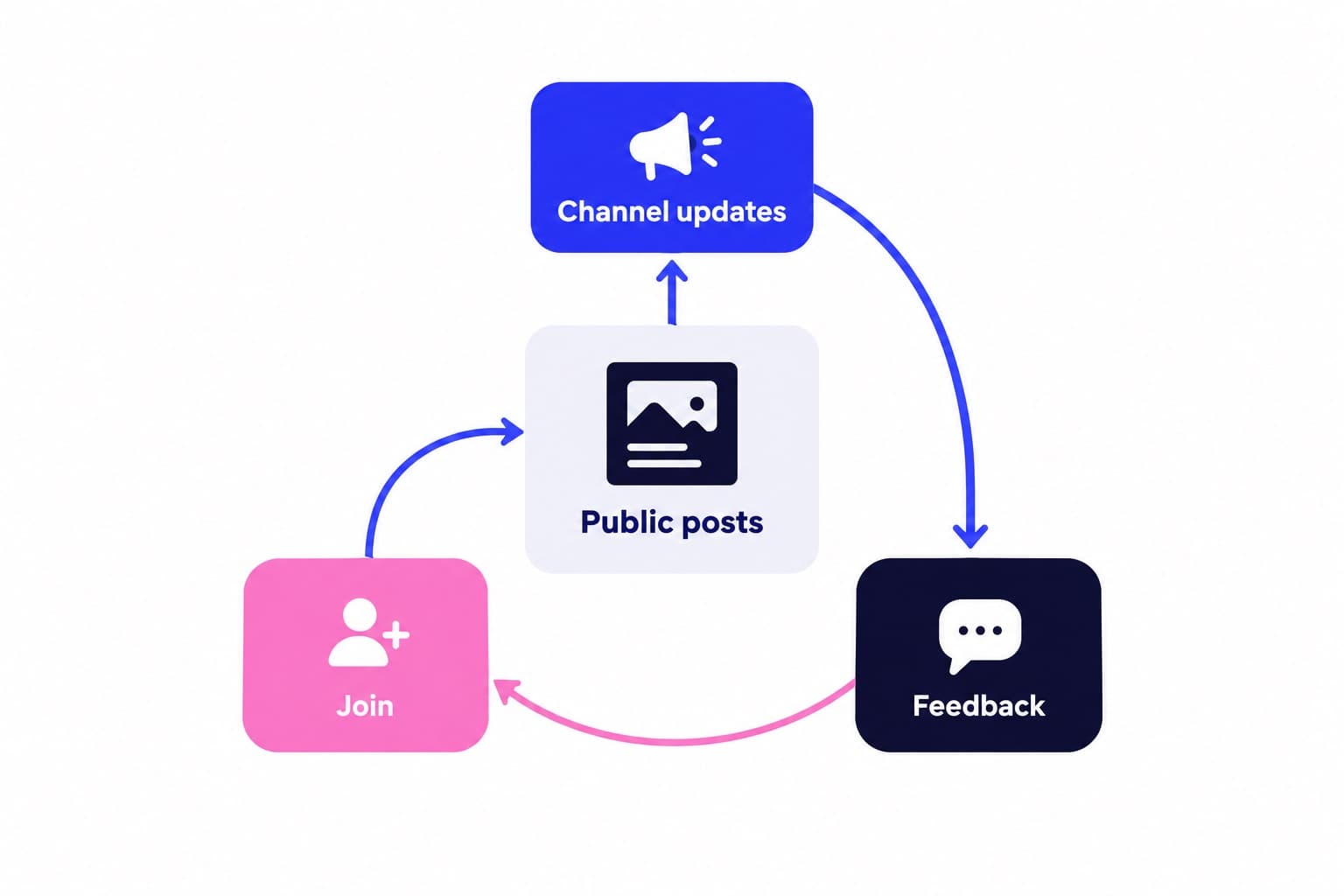
Think of the channel as a creator-led conversation, not a read-only noticeboard and not an ordinary group chat. Members can respond to what you publish, but they can't start standalone channel messages.
That distinction clears up a common mismatch in older explanations. Instagram's original announcement described reactions and polls; its current creation and joining pages explicitly include replies. Plan around the current behavior.
Channels are public and discoverable, and member reactions, replies and poll responses are visible to anyone on Instagram. The inbox location doesn't make the space a private customer conversation.
I'd invite a collaborator when they add something specific, such as a pattern tester discussing fit adjustments. A guest with a clear contribution gives followers a reason to open the conversation beyond another announcement from you.
- Creators can share text, photos, videos, voice notes and polls.
- Members can react, reply to messages and vote in polls.
- Collaborators can send messages and help moderate, but can't modify channel settings.
- Prompts give members another way to contribute ideas or feedback.
Invite followers with a preview worth tapping
Your first message triggers the follower invitation notification. Use that moment to show what people are joining, rather than leaving them with an empty greeting.
A welcome message needs three things: what you'll share, why it's useful and an easy first action. For a sewing-pattern designer, that could be: “Welcome to Pattern lab. I'll share fit notes, fabric previews and votes on upcoming tutorials. Which would help next: sleeve adjustments or choosing lining?”
A Story preview is especially useful because followers can see an actual update before joining. Add a short explanation of the benefit, such as “Join for the fit notes behind this week's tutorial,” rather than just “Join my channel.”
For the follower, the joining flow is straightforward: open the invitation in the Instagram app, review the channel and tap Join at the bottom. It then appears in their inbox. Instagram's joining instructions cover the Android, iPhone and iPad apps.
- Show the channel on your profile so visitors can find it after the launch.
- Press and hold a useful channel message, then tap Share to story.
- Share the invitation link in places where your audience already follows your updates.
- Tap the channel name, then QR code, to share a scannable invitation.
Give the channel a specific job in its first week
I'd skip copying every feed caption into the channel. People who already follow you need a reason to join another space, and a duplicate caption doesn't give them one.
Say you're a sewing-pattern designer preparing a jacket tutorial. Keep the complete tutorial on your public profile, where new visitors can discover your work. Use the channel for the decisions around it: lining choices, a fitting question or a quick explanation of why you changed the sleeve.
Here's a suggested first-week sequence, not a platform requirement:
The thread connecting those updates matters more than the schedule. Members help choose a topic, see the work develop, then get the result. That creates a recognizable reason to return.
Keep the format light enough to repeat. A voice note can add context without requiring a second edited video. A poll works when you have a real choice to make. A prompt works when several different answers could improve your next piece of content.
- First update: introduce the channel and ask which fitting problem members want explained.
- Second update: share a fabric photo or short voice note explaining a decision behind an upcoming tutorial.
- Third update: link to the finished public tutorial and point out the detail that answers the earlier question.
Instagram broadcast channel not available? Check these screens
Start by separating the account requirement from a technical problem. Confirm that your account is public and above the follower threshold, then check whether Create channel appears under Compose.
For something that isn't working correctly, Instagram recommends updating the app first. If the issue persists, use its reporting flow:
Make the report specific. Include your phone or tablet model, what you tapped and what appeared instead. “Create channel is missing after opening Messages and Compose” gives support more to work with than “channels don't work.”
I'd do those checks before experimenting with repeated account-type changes. The useful evidence is the account's current status and the screen where the expected option is missing.
- Update the Instagram app, then check Messages and Compose again.
- Open Profile, then tap Menu in the top right.
- Under More info and support, tap Help.
- Tap Report a problem, then Report problem without shaking.
- Follow the on-screen instructions and include a screenshot of the missing option.
Measure participation and connect it to your public profile
Instagram's creator guidance recommends using channel insights to see what resonates. Start there, then compare the visible responses to individual updates: poll votes, replies and reactions. Look for topics members engage with, not just the update that produced the biggest burst of activity.
Keep a simple note with the update's topic, format and response. A practical fit question and a product announcement do different jobs, so compare similar updates before deciding which format to repeat.
Turn recurring channel questions into public content. If members keep asking how to adjust a shoulder seam, that can become a tutorial for your wider audience. Bring the finished answer back to the channel so the conversation has a useful outcome.
For a broader review before inviting more visitors, use Ganicly's free profile scan. It gives you a starting point for improving the public profile that your channel supports.
For audience discovery alongside that work, Ganicly's Instagram growth plans promote your public profile to a targeted audience at a steady daily pace. Keep your channel focused on the extra context and participation that interested followers get after joining.
I'd judge the channel by whether it produces better questions, useful feedback and repeat participation. If one format does that with less production time, give it more room.
Pick a pace
Questions
Who is eligible for broadcast channel on Instagram?
A public account with more than 1,000 followers meets Instagram's stated account requirement for starting a channel. That wording means exactly 1,000 followers isn't enough. To check your account's creation access, open Messages, tap Compose and look for Create channel. Use Instagram's current creation instructions rather than older summaries with different follower thresholds.
How to get access to broadcast channel on Instagram?
To create a channel, check for Create channel under Messages, then Compose, on your eligible public account. To join someone else's channel, open their invitation notification, profile link or Story invitation in the Instagram app and tap Join at the bottom. Once joined, the channel appears in your inbox.
What is the broadcast channel on Instagram?
An Instagram broadcast channel is a public, creator-led messaging space where people join to receive updates and participate through reactions, replies and polls. Creators can share text, photos, videos and voice notes. It differs from a group chat because ordinary members can't start standalone channel messages, while invited collaborators can send messages.
Do you need 1000 followers to make a channel on Instagram?
You need more than 1,000 followers, not exactly 1,000, according to Instagram's current creation Help Center page. Your account must also be public. Numerically, 1,001 is above that threshold. After checking those requirements, look for Create channel in the Compose screen to see whether your account has creation access.
Why can't I create a broadcast channel on Instagram?
A missing Create channel option calls for checking your public-account status, follower count, feature access and app functionality. Start by confirming you have more than 1,000 followers, then update the app. For a persistent technical issue, go to Profile, Menu, Help and Report a problem, and attach a screenshot of the Compose screen.
Can followers reply in an Instagram broadcast channel?
Yes, Instagram's current Help Center says channel members can reply to messages, react and vote in polls. That isn't the same as being able to send standalone channel messages. Creators and collaborators lead the message stream, while members participate around it. Replies, reactions and poll responses are visible to anyone on Instagram.